Showing posts with label photo credits. Show all posts

21 September 2016

MLA 8 for Image Citation

All following information is copied from MLA8th edition EasyBib

Digital images are pictures that can be viewed electronically by a computer or digital device. They can include photographs, illustrations, or graphics found on a website, database, or scanned or saved to your computer.
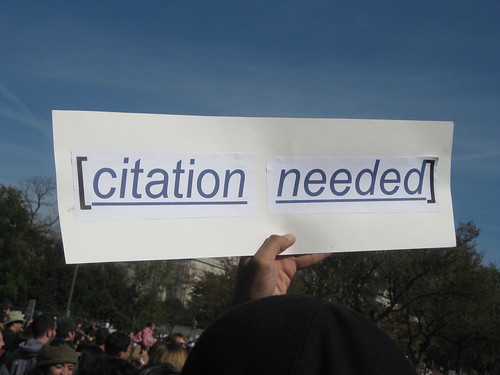
"Citation needed"

How to cite a digital image found on a website in MLA 8:

To create a citation for a digital image found on a website in MLA 8, locate the following pieces of information:

  • The name of the creator of the digital image
  • *The title of the digital image
  • The title of the website that the image was found on
  • The names of any other contributors responsible for the digital image
  • Version of the image (if applicable)
  • Any numbers associated with the image (if applicable)
  • *The publisher of the image
  • The date the image was created or published
  • *The location of the image, such as a URL

*Notes:
*If the digital image does not have a title, include a description of the image. Do not place this information in quotation marks or italics.

*If the picture was found using Google Images, do not cite Google Images as the publisher. Instead, click on the picture and use the information from the website that is hosting the picture.

*When including the URL in the citation, omit “http://” and “https://” from the site’s address. In addition, if the citation will be viewed on a digital device, it is helpful to make it clickable. This ensures that readers will be able to easily access and view the source themselves.


Structure of a citation for an image found on a website in MLA 8:


Creator’s Last name, First name. “Title of the digital image.” Title of the website, First name Last name of any contributors, Version (if applicable), Number (if applicable), Publisher, Publication date, URL.

Examples of citations for digital images found on websites in MLA 8:


Vasquez, Gary A. Photograph of Coach K with Team USA. NBC Olympics,USA Today Sports, 5 Aug. 2016, www.nbcolympics.com/news/rio-olympics-coach-ks-toughest-test-or-lasting-legacy.

Gilpin, Laura. “Terraced Houses, Acoma Pueblo, New Mexico.” Library of Congress, Reproduction no. LC-USZ62-102170, 1939, www.loc.gov/pictures/item/90716883/


10 September 2012

Week of 9/7/12 Review

After our first attempt at posting Weekly Blog Reviews, I decided to help my students by giving some guiding questions.  Although some students are really good at intuitively organizing their writing, overall organization is a weakness.  So, I created this guide: 
Guiding Questions for your weekly blog:1: Define any new terms this week (does not include stems)2: What new web 2.0 tool(s) did you learn about this week? Describe and hyperlink or embed it.3: What are some positive & negative aspects of this new tool? Explain.4: What digital literacy component did you learn about this week? Explain it.5: How does this new information affect your personal/academic life and/or interactions online?6: Overall, how has your week been?7: Anything else you want to add.Min. 300 Words
 We also worked on learning how to correctly cite photos in a blog while using photos that are okay to reuse (as in not copyrighted).  I know that a lot of people cite photos differently; there really isn't only one way to do it.  So, I decided upon the most common way, and students added photos this week.  We follow these steps that I blogged about last April and found at eHowTech.

1 Write down a very brief description of the image. You don't have to go into detail. If the image is of a grandfather clock, the description "Grandfather clock" will suffice. 
2 Note the website address at which you found the image. For example, if you found the picture of a grandfather clock on example.com, the source URL would be something like http://example.com/grandfatherclock.jpg. 
3 Locate the date on the Web page from which you are sourcing the image. If you can't locate a date on the page, use the date you downloaded the image. 
4 Combine all of the above information into a caption and place it below the picture on your website. The caption should follow this format:
Image description, available at website URL, date.
Several of us decided that the URL is so long and chunky that we will accept linking the "Available here" section of the descriptor.  Others decided that they want to use goo.gl to shorten the URL.  Either way, I think will make this look neater when posted.

Additionally, e-mail etiquette was our focus for digital literacy.  It is surprising how many people don't realize that ALL CAPS MEANS YOU ARE SHOUTING.  I always hate getting those emails.  

Finally, in addition to grammar and stems (all taken from Michael Clay Thompson's Magic Lens and Word Within a Word), we worked on setting up Google Reader and how to effectively comment on a partner's blog.  I think the students are really enjoying being bloggers.  Real world writing is much more effective. 

RSS Icon. Available at: http://farm4.static.flickr.com/3305/3223086466_07409c8084_m.jpg. January 24, 2009.